

A natural grip
The edit aims to follow the original grip and keep fingers in front of the product where appropriate. Check contact points, extra or missing fingers, and the moment the item is set down.
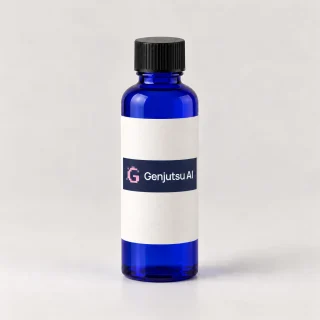
Use a product photo to replace a bottle or another object in an existing video with Genjutsu AI. The edit aims to follow the original movement and preserve the surrounding shot.
Hands, labels, and fine details can change. Review the full result before using it.
Sign in to generate · Review your credit quote before confirming
Silent comparison. Both videos share the same playback controls.
Recorded test: October 8, 2026 · Kling 3.0 Omni · 6-second selection · 1280 × 720 output.
The original test report found the blue bottle replacement, grip, finger occlusion, placement, and background broadly reasonable in sampled frames. It did not establish frame-by-frame hand or logo accuracy. This is one recorded result, not a success-rate claim.
The demonstration below is an editable prompt suggestion, not the archived generation prompt. Current models, settings, and quotes may differ from this test.
Add your video and a product photo to get started.
Add your video and product photo above. Describe the item to replace and review the editor’s current limits and quote. View credit packs and plans
Upload an existing video and select the part you want to edit. Keep the product visible and follow the upload and duration limits shown in the editor.
Use a clear reference that shows the new product’s shape, color, and packaging. A similar viewing angle gives the model more relevant visual information.
Name the original object, its position, and the action. For example: “Replace the white bottle the person is holding; keep the hand, table, and camera movement.”
Sign in, check your inputs and credit quote, then confirm generation. Play the complete output before downloading; inspect hands, labels, and the moments when the product turns.
Start with one obvious target. These preparation tips help you describe the edit; they do not guarantee a particular result.
Look for a recognizable outline, steady lighting, and a product that stays visible. Heavy motion blur, long occlusions, and repeated cuts leave less useful detail to follow.
Show the whole item without cropping the cap or base. Make the front label readable and avoid hands or props covering the packaging. A photo of one side cannot specify every hidden detail.
Use videos and photos you own or have permission to use. The editor shows the applicable file limits and media-retention notice.
The edit aims to follow the original grip and keep fingers in front of the product where appropriate. Check contact points, extra or missing fingers, and the moment the item is set down.
Your photo guides shape, color, and label appearance. Small lettering and logos may distort or change between frames. Exact brand artwork may need additional editing.
The original movement, background, and lighting guide the result. Generative editing can still change surrounding details; it is not a promise that every untouched pixel stays identical.
Name the item you want to replace, then describe what should stay. Change “white bottle” to match the object in your own footage.
Replace the white bottle held by the person with the product shown in the reference photo. Follow the original bottle’s position, scale, rotation, and movement. Preserve the person’s hands, face, clothing, and actions, including fingers passing in front of the bottle. Match the scene’s lighting, reflections, and contact shadows. Keep the background and camera movement consistent. Match the reference packaging and label as closely as possible.
These are editing instructions, not a guarantee of unchanged hands or exact packaging.
Yes. Object Swap is designed to replace a specified object using a reference photo. Describe the bottle clearly, including its appearance and position at the start of the clip. Hand contact, rotation, and heavy occlusion can affect the result, so review the complete video.
Yes. You can start with one clear product reference photo. Show the packaging and shape from an angle close to the source video. A single photo does not show every side of a product; unseen details may be inferred rather than reproduced accurately.
The edit aims to preserve the person and their actions, but exact preservation is not guaranteed. Check the fingers, grip, face, and moments when the product passes in front of the body. This is a generative edit, not a pixel-locked replacement.
Exact logo and label reproduction is not guaranteed. The product photo guides the appearance, but small lettering, symbols, and packaging details can change between frames. Review brand details at full size and use further editing when exact artwork is required.
Start with a focused clip in which the product is clearly visible. Stable lighting, a recognizable outline, and limited occlusion make the intended edit easier to specify. Use the editor’s current upload and clip limits, and upload only footage and photos you own or have permission to use.
The editor checks your inputs and shows a credit quote before you confirm generation. The cost depends on the selected model and output settings. Sign in to submit a job, and review the quote and your balance before proceeding; there is no single fixed price for every clip.
Use the editor’s source-audio setting if you want to retain audio from the uploaded video. A silent source cannot supply an original soundtrack. Audio retention does not guarantee lip synchronization; check the finished result. The bottle example on this page is silent.
Start with a clear clip and one product photo. Check the quote, then review every part of the result.