Skip to Main Content

Put Yourself in a Video

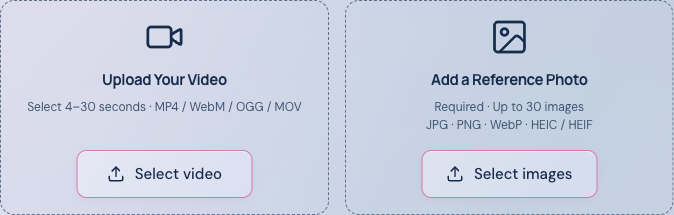
Upload an existing video and a photo of yourself to get started.

Prompt
Optional prompt

Check your inputs to get the actual credit quote. Sign in to upload and generate; review the quote before confirming. Video ≤200 MiB; select 4–30 seconds. Photo ≤30 MiB, at least 300 px per side; model-specific limits apply. Sign in before uploading and generating.

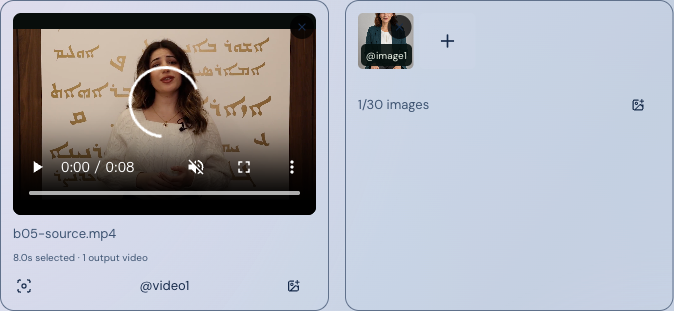
Your Input Preview

Your source video and reference photos appear here after selection. Task progress and results will appear below.

Creative references

Examples

Original clips and effect examples from Higgsfield, shown as references. Generation uses the original and your photo; results may vary.

Effect preview

Upload only videos, photos and likenesses you have permission to use. Privacy, storage and deletion · Terms of Service

Replace One Person in a Two-Person Video

Upload a video and a reference photo, then describe the person you want to replace.

Can AI Replace Just One Person in a Video?

Tools that support directed video editing can attempt to replace a described person using a reference photo. Review both people afterward: the other person may also change. This site uses its person-replacement workflow; keeping the second person unchanged has not yet passed a dedicated two-person test.

Higgsfield describes selective editing in its Genjutsu overview. That is related product information, not evidence of this site’s results. Higgsfield Genjutsu official overview

How to Replace One Person

  1. 01

    Upload the two-person video and a reference photo

    Use a clear photo of the replacement person. Select a clip whose opening frame clearly shows both people.

  2. 02

    Describe the person in the first frame

    Use position plus clothing color or another visible feature. “The person on the left” alone may become ambiguous if they move. For example:

    The person on the left in the first frame, wearing a red jacket.
  3. 03

    Generate, inspect both people, then download

    Check the replacement identity, the other person’s face, outfit and motion, and the background at the beginning, middle, end and any crossing. Download from the completed task after reviewing it.

One Person Replaced. Compare Both People.

No reviewed example of replacing only one person is published here yet. The single-person example below demonstrates a different case. To evaluate your own result, compare the source and output at the same timestamps, alongside the reference photo and your target description.

  • Check the target: does the replacement match the reference throughout the clip?
  • Check the other person: did their face, clothing, body or motion change, or did the two identities switch?
  • Check the scene: are the background, framing and camera movement retained?

Crossings, Occlusion and Other Limits

Similar clothing, fast motion, crossings and occlusion can cause the wrong person to change or affect the other person. Start with a short clip and distinct people. A position description is not a tracking lock.

  • Separated people with stable positions

    Start here. Inspect both faces and outfits at the beginning, middle and end.

  • Both people moving without overlap

    Follow each identity through the motion; check for drift in the person you wanted to keep.

  • Brief crossing or occlusion

    A difficult case. Inspect immediately before, during and after the overlap for identity switches or unwanted changes.

These are review scenarios, not demonstrated successes. Use every result to check both people.

Replacing One Person: Questions

Return to the generator

Can I Put Myself in an Existing Video?

Yes. Use your photo to replace the person, with the original video guiding the motion. Your photo supplies the appearance reference; this person replacement workflow can change the body and clothing as well as the face. After generation, check likeness, movement continuity and areas where the person is hidden or overlaps other objects. Motion is guidance, not a frame-by-frame guarantee.

Genjutsu AI provides a person replacement workflow using video editing models, with source-video backgrounds requested by default. Motion Transfer is a separate option that can rebuild the character and scene; the output framing and background can change. Review the result rather than assuming exact motion or background preservation.

Related workflow sources: Genjutsu · Viggle Body Swap

Genjutsu AI is an independent service, with its own models, accounts and credits. These sources describe their own products. Looking for the official Higgsfield entry?

How to Put Yourself in a Video

  1. Actual generator interface showing the source video upload.
    01

    Upload Your Video

    Choose a clearly visible person and readable movement. Upload MP4, MOV or WebM up to 200 MiB, 4 seconds–20 minutes; select a 4–30 second clip. The selected model may require a shorter clip.

    Back to the Generator
  2. Actual generator interface with a selected character reference photo.
    02

    Add Your Photo

    Start with one clear face photo. JPEG, PNG, WebP and HEIC/HEIF are accepted, up to 30 MiB each; both sides must be at least 300 px, with an aspect ratio from 2:5 to 5:2. Up to 30 photos can be selected; the quote checks model-specific limits. Describe the person to replace at the start of the clip.

    Back to the Generator
  3. Actual interface showing the original, reference and generated result for review.
    03

    Generate and Review

    Sign in, check the credit quote and confirm generation. Follow task progress, then review the face, hands, feet, occlusions and motion continuity before downloading. Existing task history supports recovery after refresh.

    Back to the Generator

See Yourself in the Action

Compare the original video, the supplied reference and the actual generated result. This example was created through our person replacement workflow and is authorized for public display.

One Speaker, a New Character

Original Video
Character reference: a seated woman wearing a green blazer and white top.
Reference Photo
Actual Generated Result
0.0 / 0.0 s

Comparison playback is muted. Both clips share a timeline so you can inspect the same moment.

B05 · Person replacement · Kling 3.0 Omni / transformation via KIE · 720p · 0–8 s clip · 1 reference · Source audio on · Reference preparation off · Tested October 8, 2026.

The character and clothing changed, and the background was broadly retained in start, middle and end frame checks. The 8.042-second output keeps the source audio aligned. This is a basic review; frame-by-frame face, hand and lip-sync accuracy has not been certified.

Back to the Generator

Walking/turning, full-body dance and replacing only one person in a two-person clip are still awaiting specific result review. They are not demonstrated by the speaker example above.

Choose a Photo That Shows You Clearly

Use a clear subject, enough light and a reference with a visible face. For full-body shots, include the body and outfit in the reference. Keep the first test short and describe the target at the clip start.

Fast movement, occlusion, turns and interactions between people can increase errors. Extra angles can be assigned to the same identity, but do not guarantee a better result.

Character reference: a seated woman wearing a green blazer and white top.

Clear face and visible outfit

Choose even lighting and a sharp, unobstructed face. Include more of your body and clothing when the source shows a full-body view.

Avoid a covered or unreadable face

Hands, masks, sunglasses, blur and heavy filters hide identity details. Retake the photo so your features are visible before uploading.

Photo guidance uses the authorized reference from the example above. The covered view is an illustration of missing facial detail, not a second tested input or generated result. Full-body motion still needs separate result review.

Back to the Generator

Frequently Asked Questions

What the current workflow supports, and what to check before generating.

Ready to Step into Your Video?

Return to the same generator. Your current selections stay in place.

Back to the Generator

Can Genjutsu replace anyone? Evidence and limits

A character can be recast, but “anyone in any video” is not a verified guarantee. These official-product sources complement the separate studio workflow and reviewed B05 example above.

What the Higgsfield Genjutsu tutorial actually establishes

The YouTube tutorial by Zubair Trabzada / AI Workshop was published on September 11, 2026. Its description discusses motion transfer, character and product swaps, backgrounds, and Claude MCP. It also discloses Higgsfield sponsorship. Treat its Higgsfield Genjutsu examples as a creator demonstration, not an independent benchmark covering arbitrary footage.

The published chapter list gives useful places to investigate: character swapping at 02:49, results and accuracy at 04:43, and characters plus backgrounds at 05:46. We could read the page description and chapter metadata; subtitles were unavailable during review. This guide therefore cross-checks Higgsfield Genjutsu capabilities against official documentation rather than inventing a transcript or reporting our own generation test.

What to change when Higgsfield Genjutsu misses

If the wrong person changes, make the target description more specific and choose a less ambiguous shot. If identity varies, simplify the references. If the scene changes too broadly, reconsider whether a targeted swap fits better than reconstruction. Change one input at a time so the next Higgsfield Genjutsu attempt answers a useful question.

Do not repeatedly regenerate an unchanged request merely because the first result disappointed you. Identify the mismatch and estimate whether another attempt is worth its cost. Higgsfield Genjutsu uses credits; a usable final edit may require more than one attempt. This guide reports no measured retry count or success percentage.

Does Higgsfield Genjutsu give permission to replace anyone?

Technical capability does not establish permission to use someone's likeness or footage. For a straightforward Higgsfield Genjutsu test, use your own material or references you are authorized to use. Review applicable publishing requirements before sharing a realistic impersonation.

Official upload limits need a separate check

Public limits need care. The official guide lists 4–30 seconds and up to 30 references; the product FAQ currently lists 3–30 seconds and up to 40. These disagree. Follow the validation shown in the Higgsfield Genjutsu generator you actually use, and do not treat an API limit or this independent studio's limit as interchangeable.

Sources

Find a related tool, a practical guide, or the credit plan for your next edit.