
To get clean edges and stable facial identity in an AI video swap, start with a steady 4–10 second single-shot clip in even lighting, pair it with one sharp, angle-matched reference photo (300 px+), and keep your prompt focused on a single change. Most flickering seams, warped fingers, and drifting faces trace back to blurry source footage or mismatched lighting rather than prompt length.
Whether you are running outfit replacement in video, AI face swap video, full-body character replacement, product swaps, or AI motion transfer, this checklist pairs real recorded video cases with exact clip lengths, lighting rules, and model tiers on Genjutsu AI.
Optimal video length, resolution, and lighting settings for AI video swap
Uploading cleaner inputs beats trying to rescue noisy footage with a longer prompt. Genjutsu AI accepts single-shot MP4, MOV, WebM, and OGG clips up to 200 MiB (editing a 4–30s segment) alongside JPG, PNG, WebP, or HEIC reference photos (300 px+, up to 20–30 MiB) in desktop browsers, iPhone Safari, or Android Chrome.
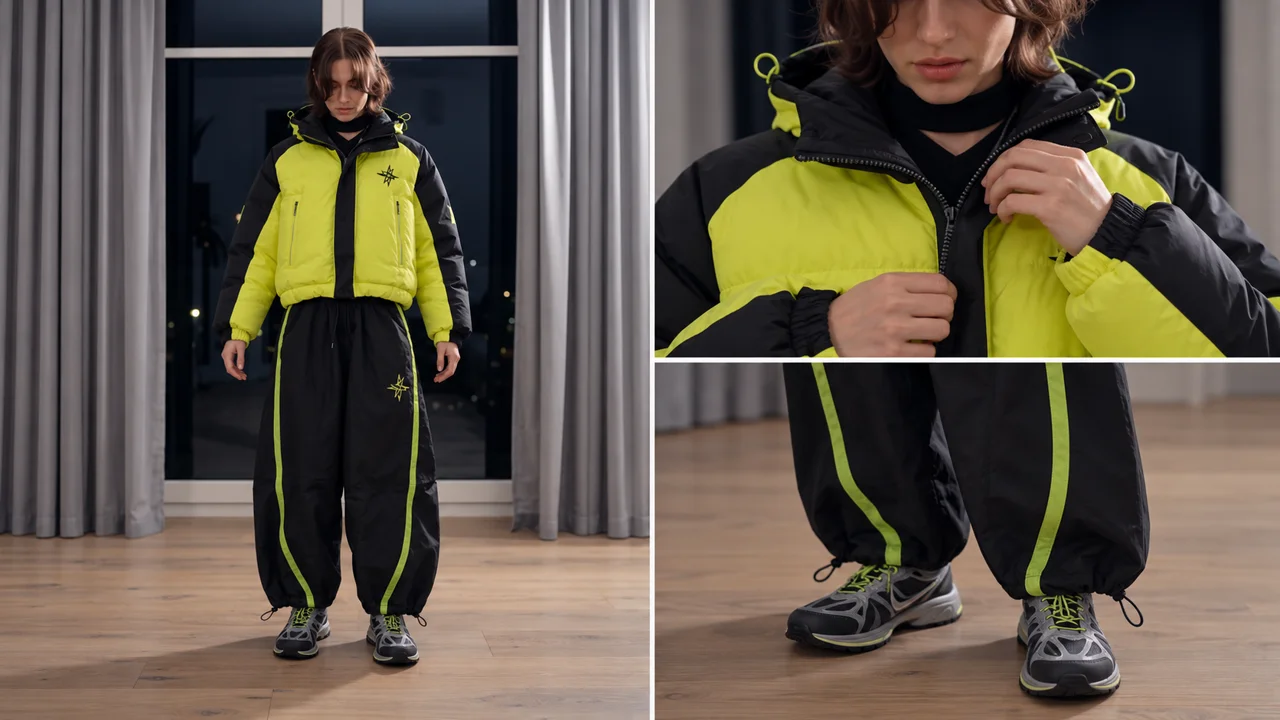
Recorded case: 8s 720p full-body character swap (B05)
Stable camera framing and unobstructed front lighting keep facial identity and jacket seams clean across an 8-second performance.

Recorded test clip (October 8, 2026). Results vary by source motion blur, lighting, and selected tier; inspect the full timeline.
| Parameter | Recommended sweet spot | Platform limit | Why it protects faces & edges |
|---|---|---|---|
| Clip length | 4–10 seconds (single shot) | 4–30 seconds per run | Limits cumulative temporal drift and keeps test credit quotes low |
| Source resolution | 720p or 1080p sharp footage | Up to 200 MiB upload | Clear pixel detail around collars, fingers, and eyes anchors edges |
| Camera motion | Tripod or gentle handheld | No hard cuts inside clip | Prevents motion blur streaks that cause shimmering boundaries |
| Lighting | Soft, even front or side light | Match clip & photo mood | Eliminates pasted-on highlights and color casts across skin and fabric |
| Reference photo | 1 sharp front photo (≥720 px) | ≥300 px, JPG/PNG/WebP/HEIC | Defines garment cut, facial geometry, or SKU shape cleanly |
| Model tier | Lite for 4s tests; Pro/Max finals | Lite, Standard, Pro, Max | Higher tiers preserve finger occlusion, cloth drape, and lighting |
Shooting on a phone? Lock exposure before recording and upload native MOV/HEIC files directly via Genjutsu AI Mobile.
Why edges flicker and faces drift in an AI video swap (symptom-to-fix matrix)
When a generated AI video swap test clip shows artifacts, diagnose the failure mode before paying for a blind rerun. Compare your reference shot against the visual benchmarks below first.
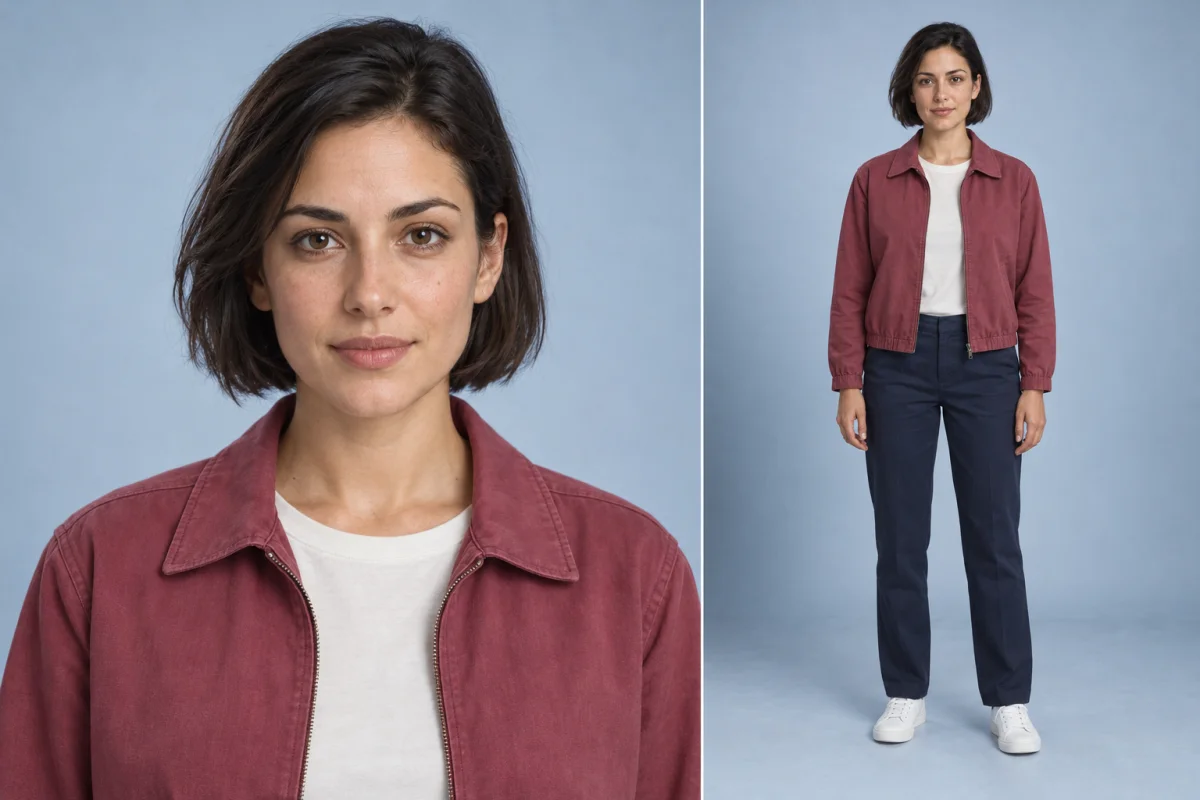
Portrait framing & occlusion check
Illustrative reference study: unobstructed eyes and even lighting anchor facial identity far better than side profiles or harsh shadows.
Character swap guide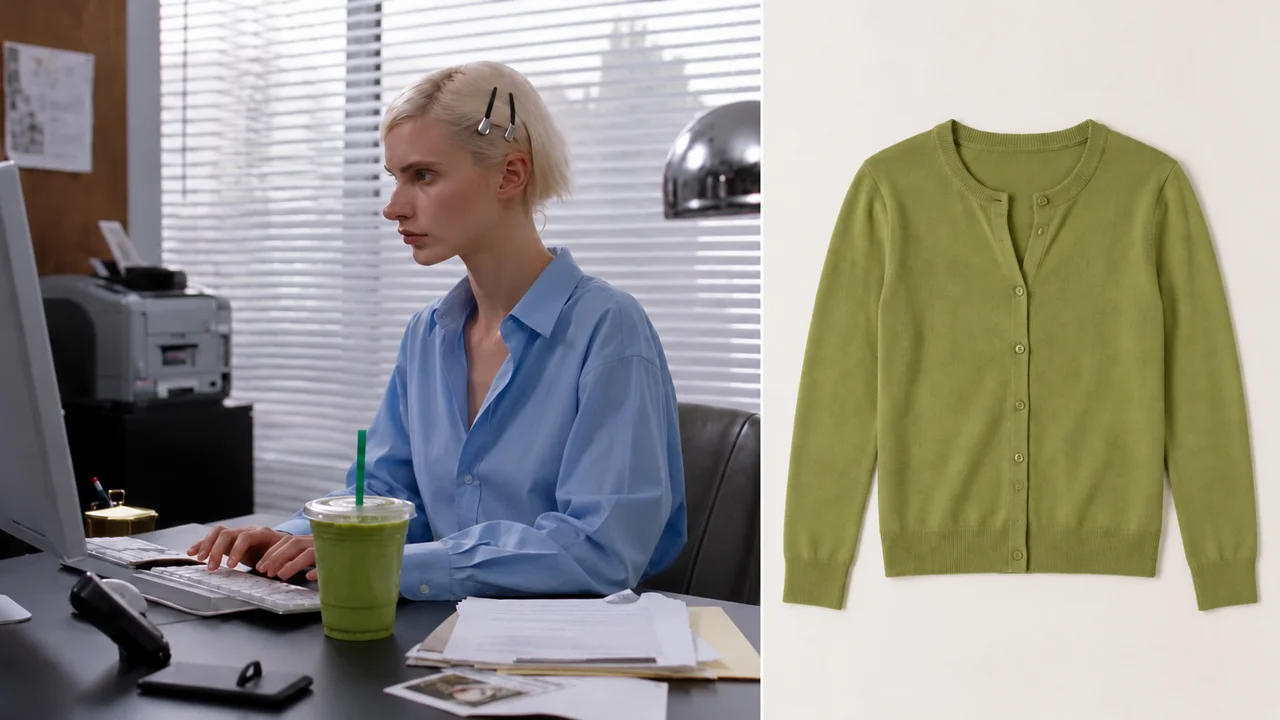
Single-garment photo clarity
Illustrative reference: full collar, sleeves, and hem visible without cropped edges.
Clothes swap guide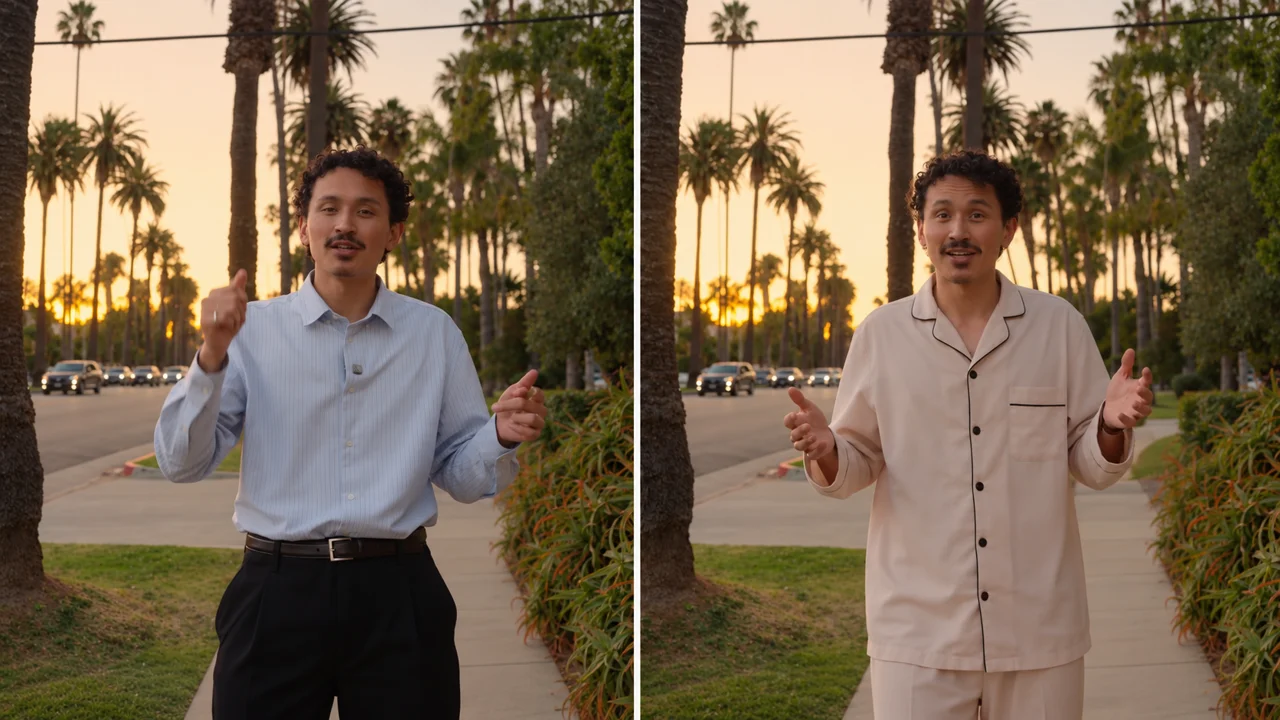
Collar & lighting continuity
Illustrative check: inspect collar seams, shoulders, and shadows across frames.
Try Virtual Try-On| Observed artifact | Most common root cause | Concrete fix before rerunning |
|---|---|---|
| Shimmering collar, sleeve, or hem edges | Motion blur on fast arm swings or high-contrast busy backgrounds | Trim to a calmer 4–8s beat and step up from Lite to Standard (Wan 2.7) or Pro (Omni) |
| Facial identity drifts mid-clip | Subject turns past 90° profile, wears sunglasses, or portrait is low-res | Use an unobstructed front portrait; switch to Face Swap if only the face changes |
| Warped fingers over clothes or props | Hands repeatedly cross the target garment or obscure the replaced item | Trim before heavy hand occlusion and instruct the prompt to preserve natural grip |
| Pasted-on lighting or color halo | Bright studio flat-lay photo inserted into a dim warm-lit room clip | Use softer ambient reference lighting and request matching room shadows |
| Background or extra person mutates | Over-broad prompt asks to restyle the whole scene instead of one target | Name one target (“the grey hoodie”) and lock face, hair, and background |
| Small printed logos warp | Generative video approximates micro-text frame-by-frame | Test bold patterns first and inspect legibility at 100% playback |
Five-step workflow for cleaner AI video swap results
- Isolate one clean 4–8s beat first. Test your reference photo and prompt on a short, sharp beat before rendering a 20–30s clip.
- Match angle and lighting between clip and photo. Pair front-facing footage with a front-facing garment or portrait photo at similar scale.
- Write a 20–40 word single-change prompt. Name the exact target to replace, then list what stays untouched.
- Match model tier to stage. Validate framing on Economy Lite (Motion 2.6) with free previews or check-in credits, then finalize on Standard (Wan 2.7), Pro (Omni / Motion 3.0), or Max (Kling 4.0).
- Scrub three stress frames before export. Inspect frame 1, the peak motion beat (arm crossing or head turn), and the final second for collar edges, fingers, eyes, and audio sync.
Click to play a 6s bottle replacement checking finger overlap, reflections, and background stability.
Click to play an 8s motion transfer clip preserving head turns, expressions, and speech timing.
Matching model tiers and testing budgets without wasted spend
You do not need a monthly subscription to dial in clean AI video swap settings. Eligible accounts start with 1 free 4s Lite preview on Google sign-in (40/day global pool, including 15/day watermark-free 720p slots on US iOS) plus 24 weekly check-in credits (covering a watermark-free 4s 720p Economy Lite render at 22 credits). One-time Trial Packs start from $0.99–$1.99 and standard non-expiring packs start at $7.90 (220 credits across 10 currencies). Confirmed failed or blocked steps automatically return credits to your balance, and exports stay downloadable in /create/history for 7 days.
Frequently asked questions about AI video swap quality
What video length works best for a clean AI video swap without edge flicker?
Start with a steady 4 to 10 second single-shot clip even though Genjutsu AI accepts segments up to 30 seconds. Shorter clips reduce cumulative pose drift, cost fewer credits to test, and make it easier to inspect collar seams, hands, and facial identity before scaling up.
Why do garment edges flicker or look pasted on during outfit changes?
Edge flicker usually comes from motion blur, harsh backlit silhouettes, fast torso spins, or a garment reference photo shot under very different lighting. Using a well-lit, unblurred clip and matching the reference photo angle and lighting reduces boundary shimmer.
How do I keep facial identity consistent when replacing a character or outfit?
Upload one sharp, unobstructed front-facing portrait at 300 px or higher with even lighting and neutral expression, and avoid source clips where hair, hands, or sunglasses repeatedly cover the face. State explicitly in your prompt to preserve the person’s face, hair, and skin tone when only changing clothes.
Which model tier should I pick for clean edges and motion continuity?
Use Economy Lite (Motion 2.6) for fast 4–5 second framing checks, Standard (Wan 2.7) or Recommended Pro (Omni / Motion 3.0) for cleaner fabric drape, hand contact, and facial continuity, and Max (Kling 4.0) for longer complex segments up to 30 seconds.
What happens to my credits if an AI video swap fails to render?
Every run shows an upfront credit quote before you confirm. If a confirmed generation fails, is cancelled before completion, or is blocked by safety moderation before an output is delivered, credits for incomplete steps are automatically returned to your balance with no support ticket required.